Why Windows Search Does Not Find Text Inside Your PDFs
You type a phrase into the File Explorer search box, in the folder you know contains the document, and get nothing. The text is definitely there — you can open the PDF and find it with Ctrl+F. Windows simply cannot see it.
This is one of the most quietly frustrating things about Windows, because the failure is silent. There is no message saying the file type could not be read; you just get an empty result list that looks exactly like a genuine absence.
What is actually happening
Windows Search does not understand file formats by itself. For each format it relies on a component called an IFilter, which knows how to pull plain text out of that kind of file. Windows ships with filters for text, Office documents and a handful of others. It does not ship with one for PDF.
So unless something installed a PDF IFilter on your machine — Adobe Reader and some other PDF software do — the index contains your PDF filenames and none of their contents. Searching finds documents whose name matches and nothing else.
A second condition compounds it: even with a filter present, Windows only searches the contents of folders that are in the index. Network drives, external drives and most locations outside your user folders are not indexed by default, and in a non-indexed folder Explorer falls back to a filename match regardless of what filters exist.
| Condition | What a search finds |
|---|---|
| No PDF IFilter installed | Filenames only |
| Filter installed, folder not indexed | Filenames only |
| Filter installed, folder indexed | Contents — but only once indexing has finished |
| Any of the above, document is a scan | Nothing — there is no text to index |
Two ways forward
You can fix Windows Search, or you can stop relying on it for this. Both are legitimate, and which is right depends on whether you want ongoing indexed search of your own documents or a reliable way to search a specific set now.
Fixing it, or working around it
The steps below start with the diagnosis, because the fix depends on which of the two conditions is failing.
-
Confirm the document is actually searchable
Open the PDF and try to select a line of text. If nothing highlights it is a scan with no text layer, and no search tool will find anything in it until it is OCR'd. This rules out the most common false alarm.
-
Check whether the folder is indexed
Open Indexing Options from the Start menu and look at the listed locations. Network drives, external drives and most folders outside your user profile are not indexed by default, and Explorer falls back to filename matching in them.
-
Check whether a PDF IFilter is installed
Windows ships no PDF filter of its own; one arrives with Adobe Reader and some other PDF software. Without it the index holds filenames only, however well configured everything else is.
-
Add the folder to the index if you search it often
In Indexing Options, add the location. This is worth doing for your own working folders, and not worth doing for a one-off folder someone has just sent you.
-
Wait for indexing to complete
Windows reads every document to build the index, which can take hours on a large collection and slows while you are using the PC. A search failing shortly afterwards may simply be early.
-
Use a direct search tool when the index is not the answer
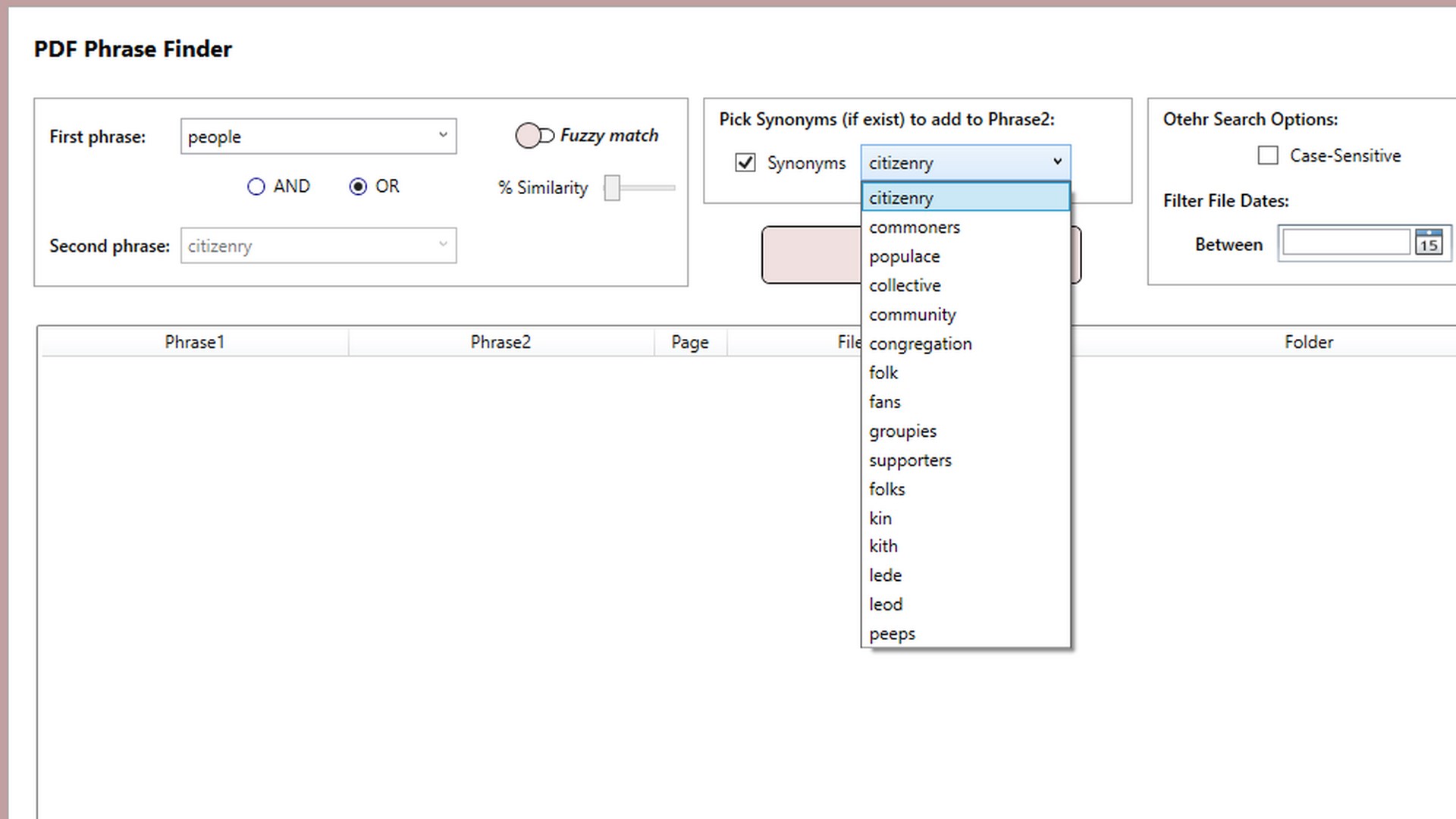
For network drives, one-off folders or anything urgent, PFinder reads the PDFs directly with no index or filter involved, and adds fuzzy matching and Boolean search on top.
Indexing is not instant. After installing a filter or adding a folder to the index, Windows has to read every document, which can take hours on a large collection and does not run at full speed while you are using the machine. A search that still fails ten minutes later has not necessarily failed permanently.
Why the workaround is often the better answer
Fixing the index is worth doing for documents you search repeatedly. It is a poor answer for the common case — a folder someone just sent you, on a network drive, that you need to search once, today.
PFinder reads the documents directly rather than consulting an index, so it works on any folder including network and external drives, with no indexing wait and no filter to install. It also does what the index cannot: fuzzy matching for typos and OCR errors, Boolean AND/OR between two phrases, and an HTML export of the results. It is free.
The case neither approach fixes
If the PDF is a scan with no text layer, there is no text to index and none to search. Nothing — Windows Search, PFinder, Acrobat — will find a phrase inside an image of a page. Test by trying to select the text: if it does not highlight, the document needs OCR first.
Get PFinder
Search PDF contents directly, with no index, no filter and no waiting. Free on Windows.
Get PFinder free on the Microsoft StoreFree · no account, no sign-up · Windows 10 & 11
Frequently asked questions
Why does Windows Search not find text inside PDF files?
Because Windows does not include a PDF IFilter — the component that extracts text from a file type for the search index. Without one, the index holds your PDF filenames and none of their contents. A filter arrives with Adobe Reader and some other PDF software; on a machine without any, PDF content is invisible to search and the failure is silent rather than reported.
How do I make Windows search inside PDFs?
Two conditions must both hold. A PDF IFilter must be installed, which usually means installing PDF software that provides one. And the folder must be in the search index — open Indexing Options and add it, since network drives, external drives and most locations outside your user folders are not indexed by default. After both, allow time for indexing to complete.
Why does searching a network drive not find PDF contents?
Network drives are not indexed by Windows Search by default, and in a non-indexed location File Explorer falls back to matching filenames only, regardless of which filters are installed. A tool that reads the documents directly rather than consulting an index avoids the problem entirely.
How long does Windows take to index PDF files?
It depends on how many documents there are and how large they are, and indexing deliberately runs slowly while you are using the machine. A large collection can take hours. A search that fails shortly after you add a folder has not necessarily failed permanently — it may simply be early.
Is there a way to search PDFs without using the Windows index?
Yes. PFinder reads the PDF files directly, so there is no index to build, no IFilter to install and no waiting, and it works on network and external drives where indexing does not apply. It also adds fuzzy matching, Boolean AND/OR searching and an HTML export of results. It is free on the Microsoft Store.
Windows finds my PDF filenames but not the text — why?
That is the signature of a missing IFilter or a non-indexed folder. Filename matching does not require any understanding of the file's contents, so it keeps working while content search silently returns nothing. Getting filename hits and no content hits is the clearest symptom of this particular problem.